
Sharing digital credentials as a PDF

On this page

How to create a shareable PDF
To create a PDF of a digital credential, you’ll first need to:
- Download the Service Victoria app through the Apple App Store or Google Play.
- Create a Service Victoria account.
- Go to 'Wallet' in the app menu and add a credential.
You can currently only share children's digital birth certificates as a PDF. We're working on making other credentials shareable.
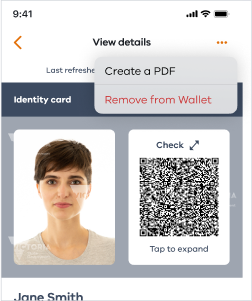
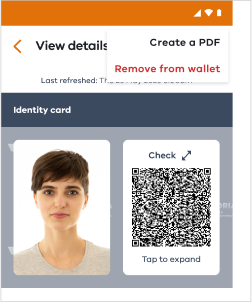
To create a PDF of a digital credential, tap on the menu in the top right of the view details screen and select 'Create a PDF'.
Select what you want to share then tap ‘Create PDF’ and a preview will open. You can then save to your device or share by email, SMS, or other apps.
Frequently asked questions
What is a digital credential?
A digital credential is a digital version of an ID card or document like a driver licence or birth certificate that can be added to your wallet in the Service Victoria app. It can be verified by scanning the QR code found on the credential.
What information is shown on the PDF?
The PDF will include all the info from the digital credential. Some credentials, you can select what info is shown to match what is required.
Why would I need to create a PDF of my digital credential?
Agencies or businesses may need you to provide details of your credentials to keep on file for regulatory, legal, or insurance purposes. You may also need to upload a copy of a credential when completing an application form online.
Where are PDF versions of digital credentials accepted?
Kindergartens in select councils now accept a PDF copy of your child’s birth certificate when applying for a paid kindergarten placement. If you receive an offer, you can also use the PDF to enrol your child in the chosen kinder.
How secure is the PDF copy of my card or document?
While on your device, your digital credential is protected and secure. Once it’s shared as a PDF, it’s no longer solely on your device. Anyone with the PDF can view, copy or store it, so it’s important to only share it with people or organisations you trust.
How can I ensure the PDF remains original and unchanged?
When you create a PDF, it’s digitally signed to help protect it from tampering.
To check the signature in Adobe Acrobat:
- Open the PDF and click the signature panel.
- Select the signature to see if it’s valid.
- A green tick means it’s valid.
- A warning means the document’s been changed or the signer isn’t trusted.
- To verify the PDF is from Service Victoria, click on the signature panel, choose ‘Signature Properties’, then ‘Show Signer’s Certificate’. This will display the signer’s name, date signed, and if it's a trusted source.
Does the PDF expire?
The PDF doesn’t expire. If your digital credential details change, you’ll need to create a new version. The date it’s created will appear at the top right of each page.
How can I verify a digital credential document?
You can ask to view the digital credential on their device and scan the QR code using the Service Victoria app.
To do this:
- Download the Service Victoria app through the Apple App Store or Google Play.
- Tap on ‘Scan QR’ in the navigation footer. This will open the Service Victoria QR camera.
- Scan the digital credential’s QR code using the QR camera.
- A green tick will confirm if the info is valid and up to date.