
Manage your fuel outlets and price reporting
On this page

Outlet details, fuel prices and automatic reporting
From the ‘Manage your fuel business page’, you can update the details of your outlets, manually update your fuel prices and set up automatic price reporting.
You can also whitelist IP addresses and generate an API key. You may need to consult your in-house or third-party IT specialist to complete the setup.
Before you start
- Set up your Business Profile account
- Register your business and all of your outlets (service stations).
Step-by-step guide
This guide will walk you through the basic steps on setting up API access. However, we recommend consulting with your in-house IT expert or 3rd party software vendor to do this.
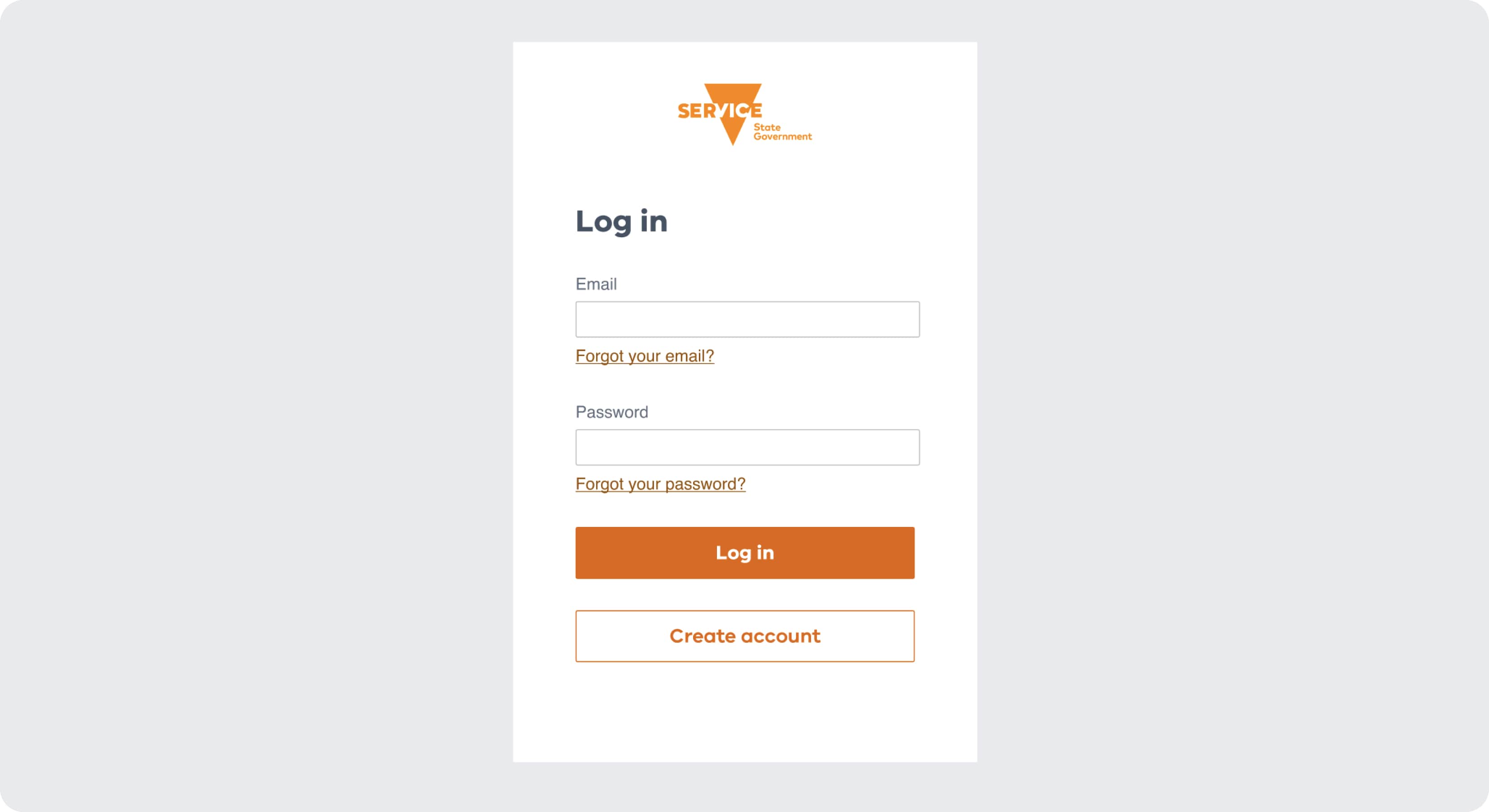
1 Log in to your Business Profile
Log in using your email and password.
2 Find the ‘Manage your fuel business’ page
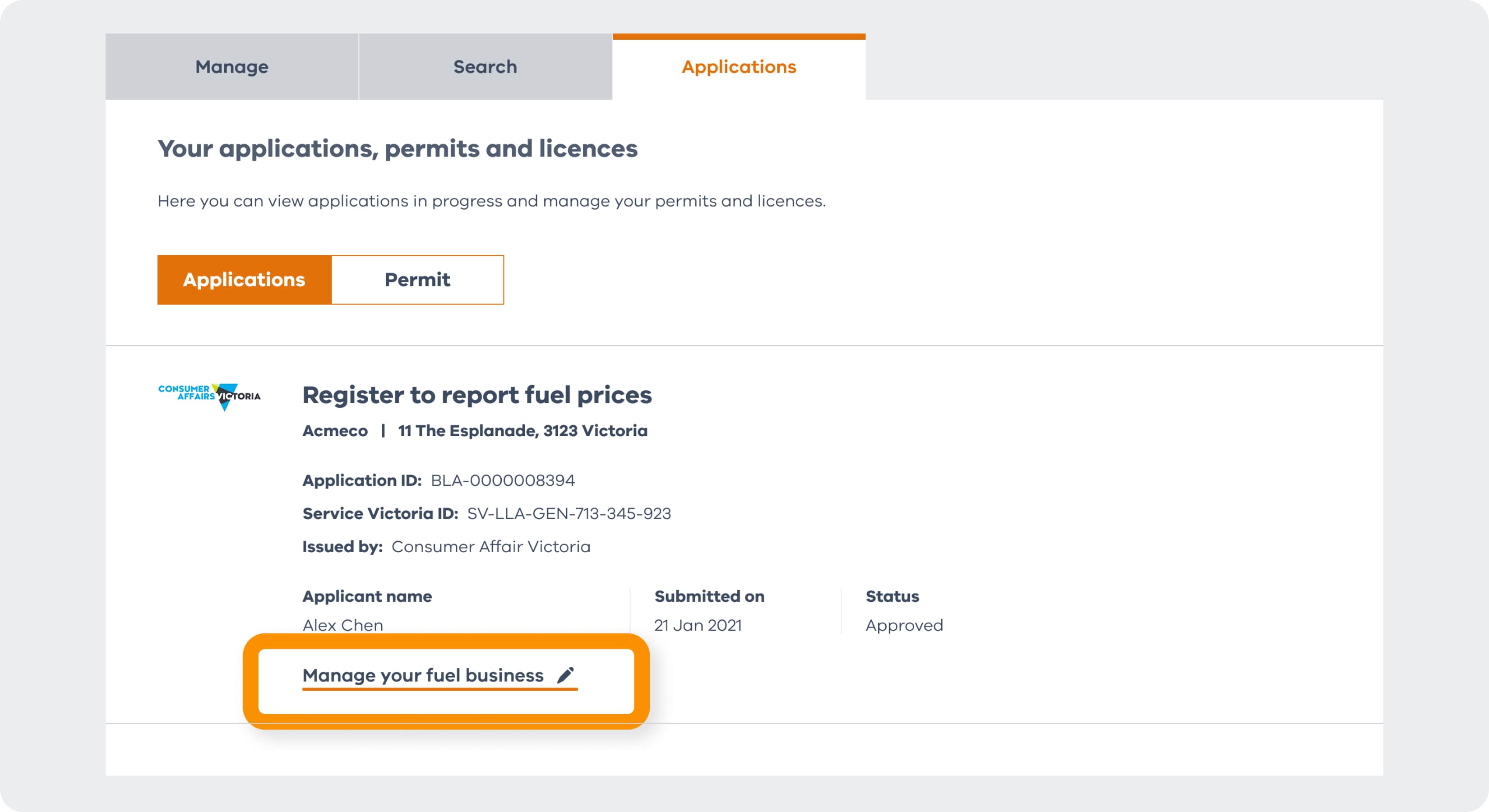
Once your application to register has been approved, select the ‘Applications’ tab.
Find your fuel price application and select ‘Manage your fuel business’.
3 See the options to manage your fuel business
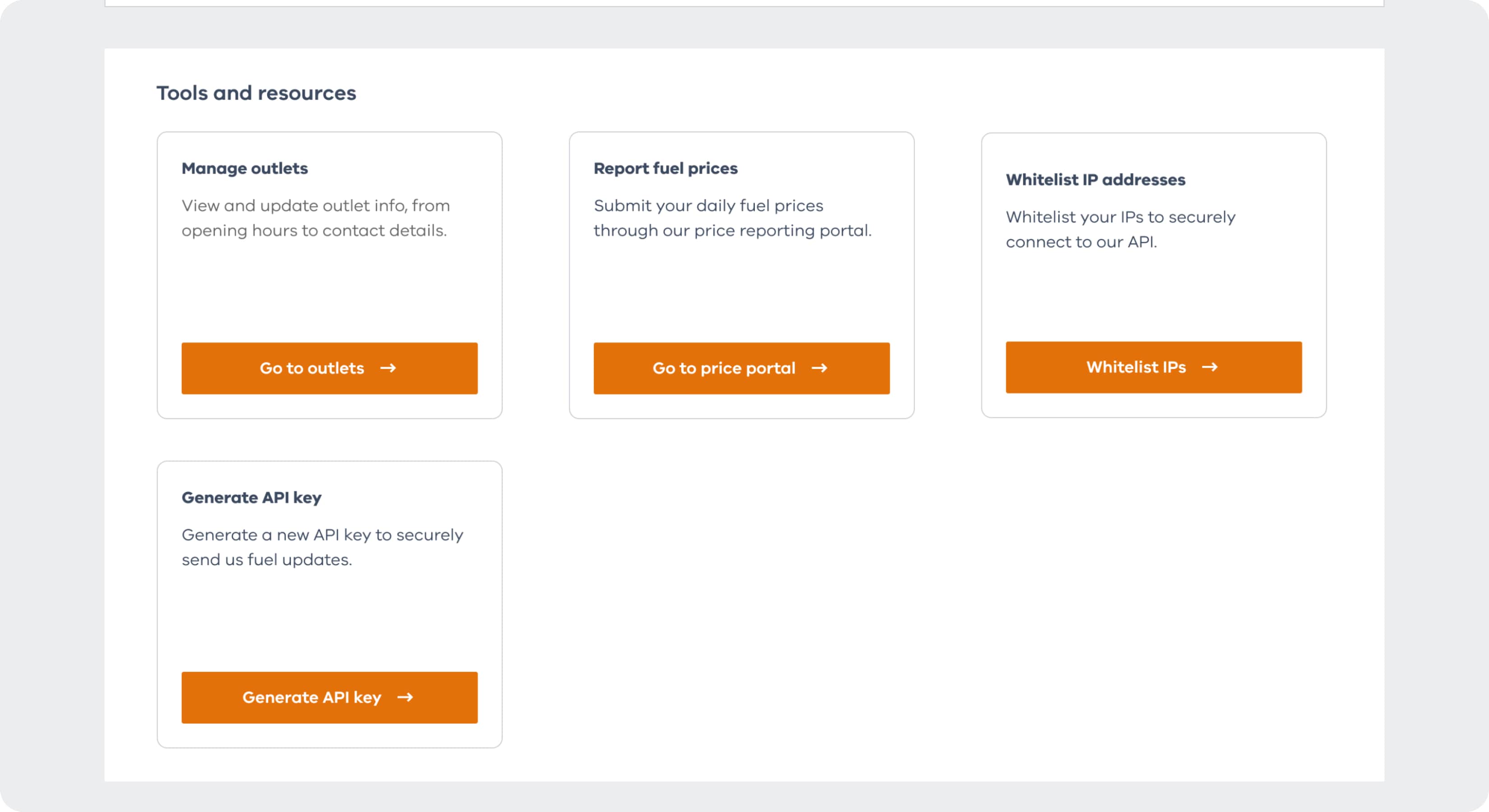
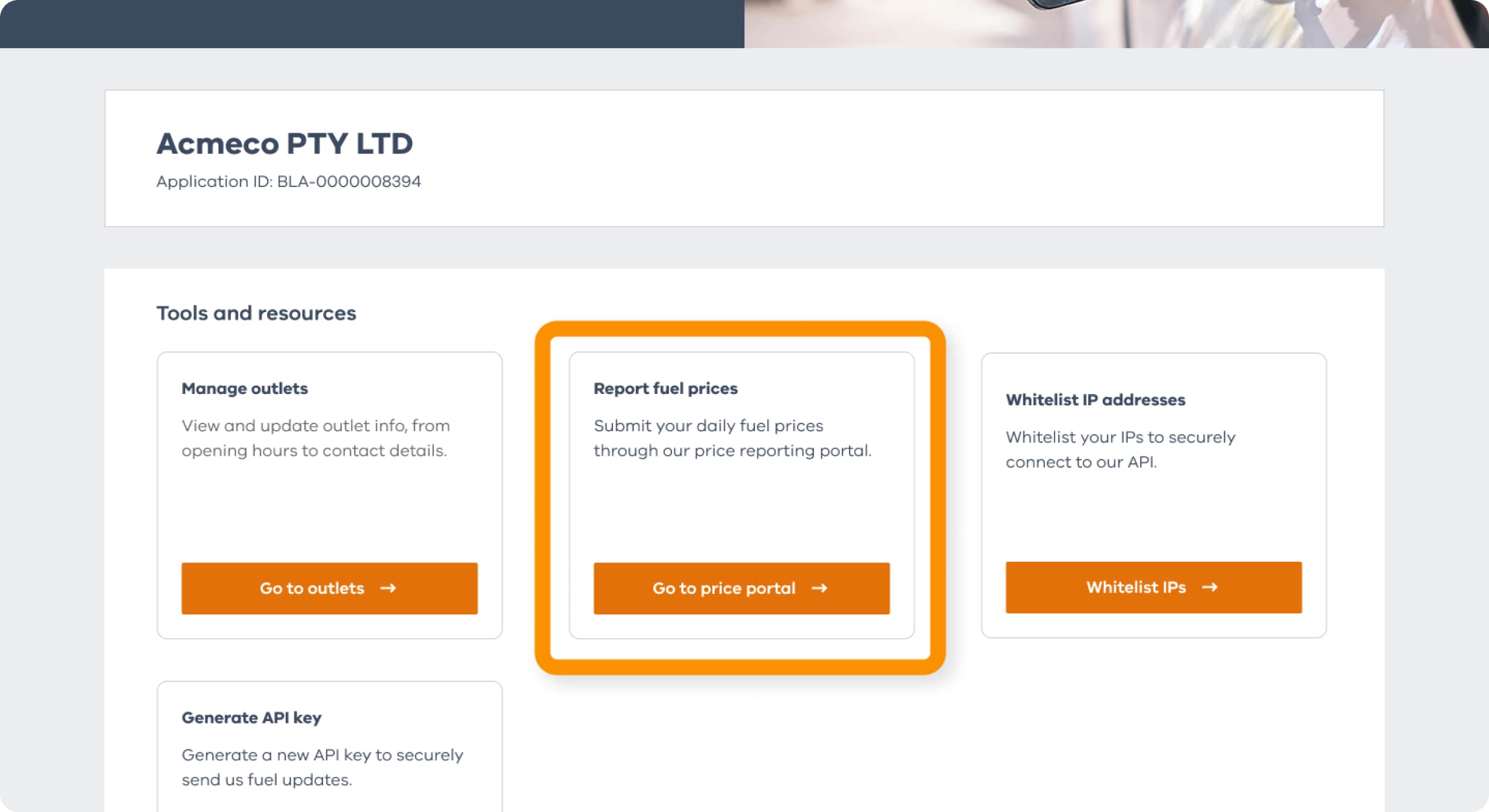
Manually update your fuel prices and manage your outlets’ details on this page. You can update fuel type availability and opening hours as well.
You can also whitelist IPs addresses and generate an API key on this page.
4 Manage outlets
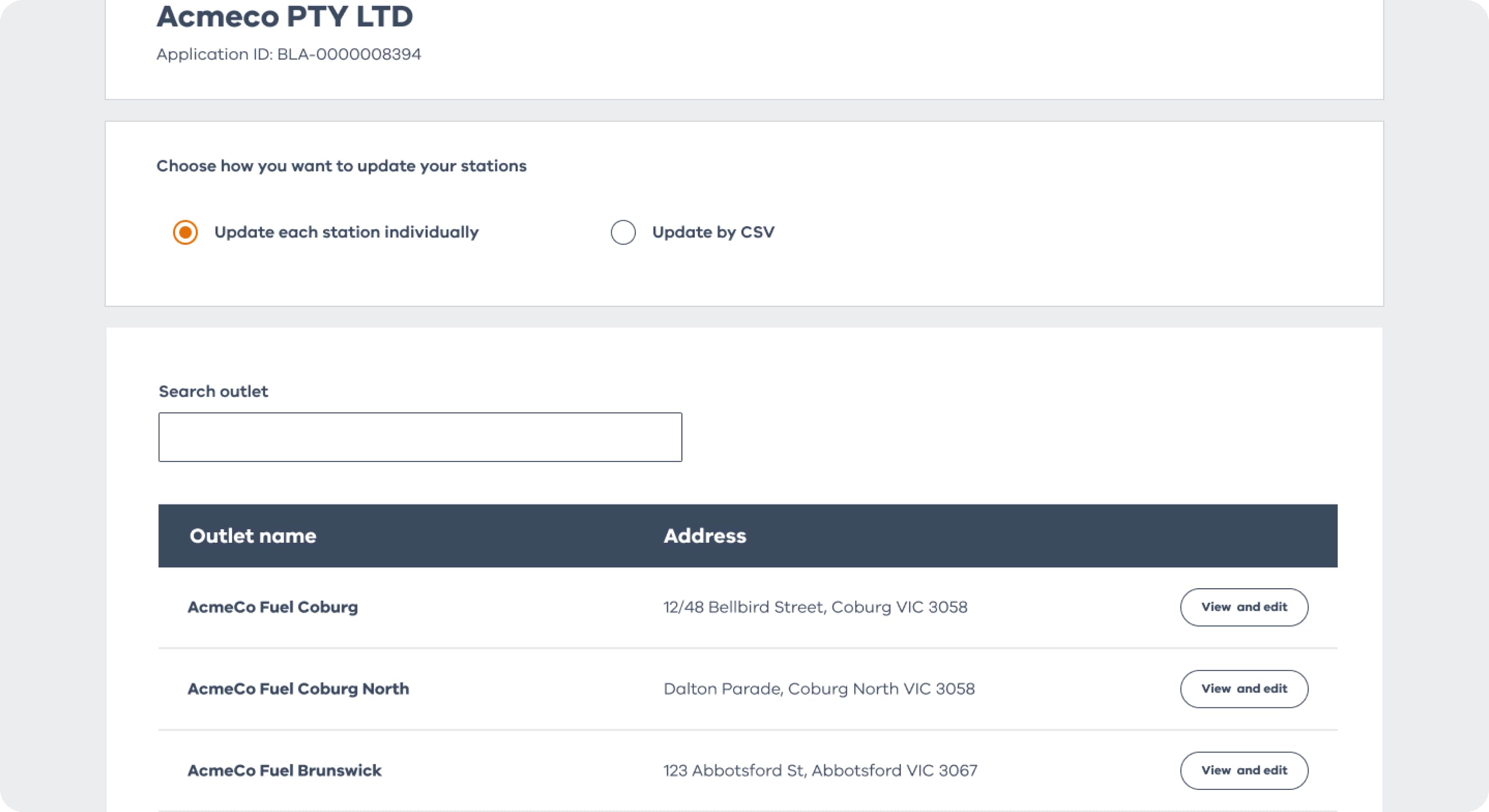
Select ‘Go to outlets’ to find a list of all of your current outlets.
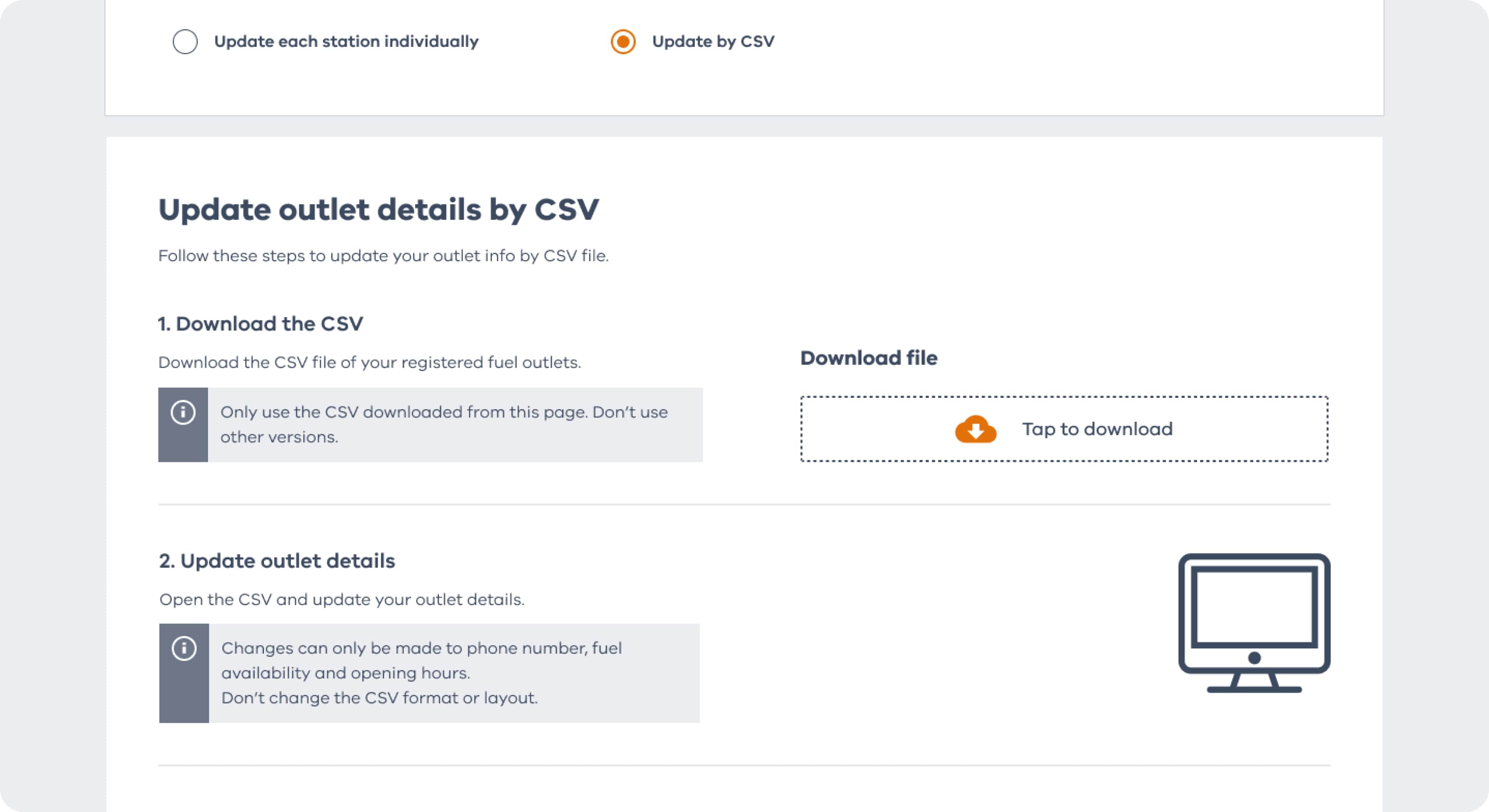
You can update an outlet’s details by selecting ‘view and edit’ on the right hand side. To update details for all your outlets at once, select ‘Update by CSV’ at the top of the page and follow the steps.
Update each station individually
Update by CSV
5Report fuel prices manually
To update your fuel prices manually on this page, select ‘Go to price portal’ and follow the steps. For a more detailed guide, you can to the reporting fuel price manually page.
6Whitelist your IP addresses
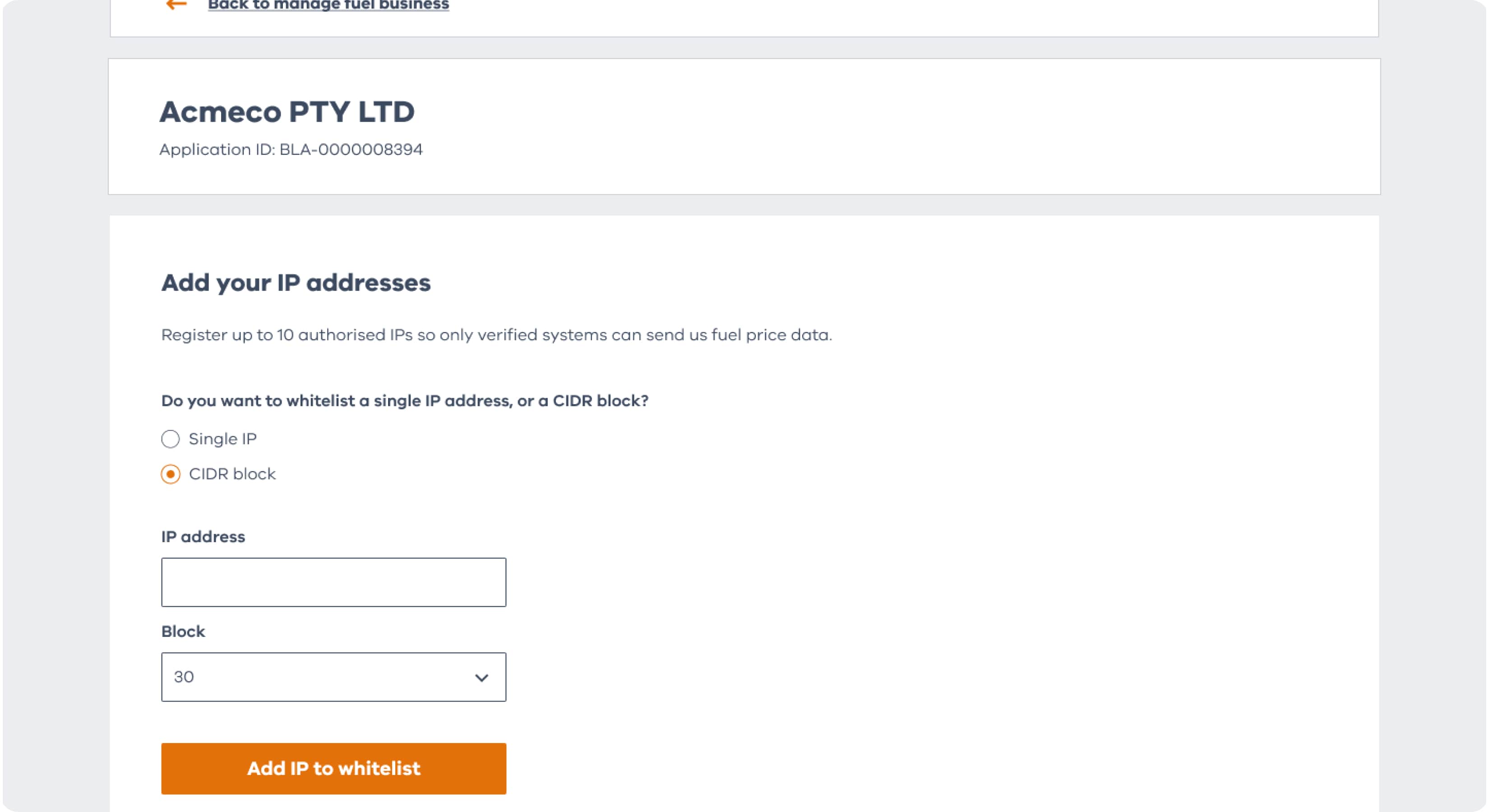
To set up automatic reporting, you first need to whitelist the IP addresses of any devices that’ll be sending us data.
This makes sure that the devices communicating with Service Victoria can be trusted. You can whitelist up to 10 IP addresses at a time.
7Generate API Key
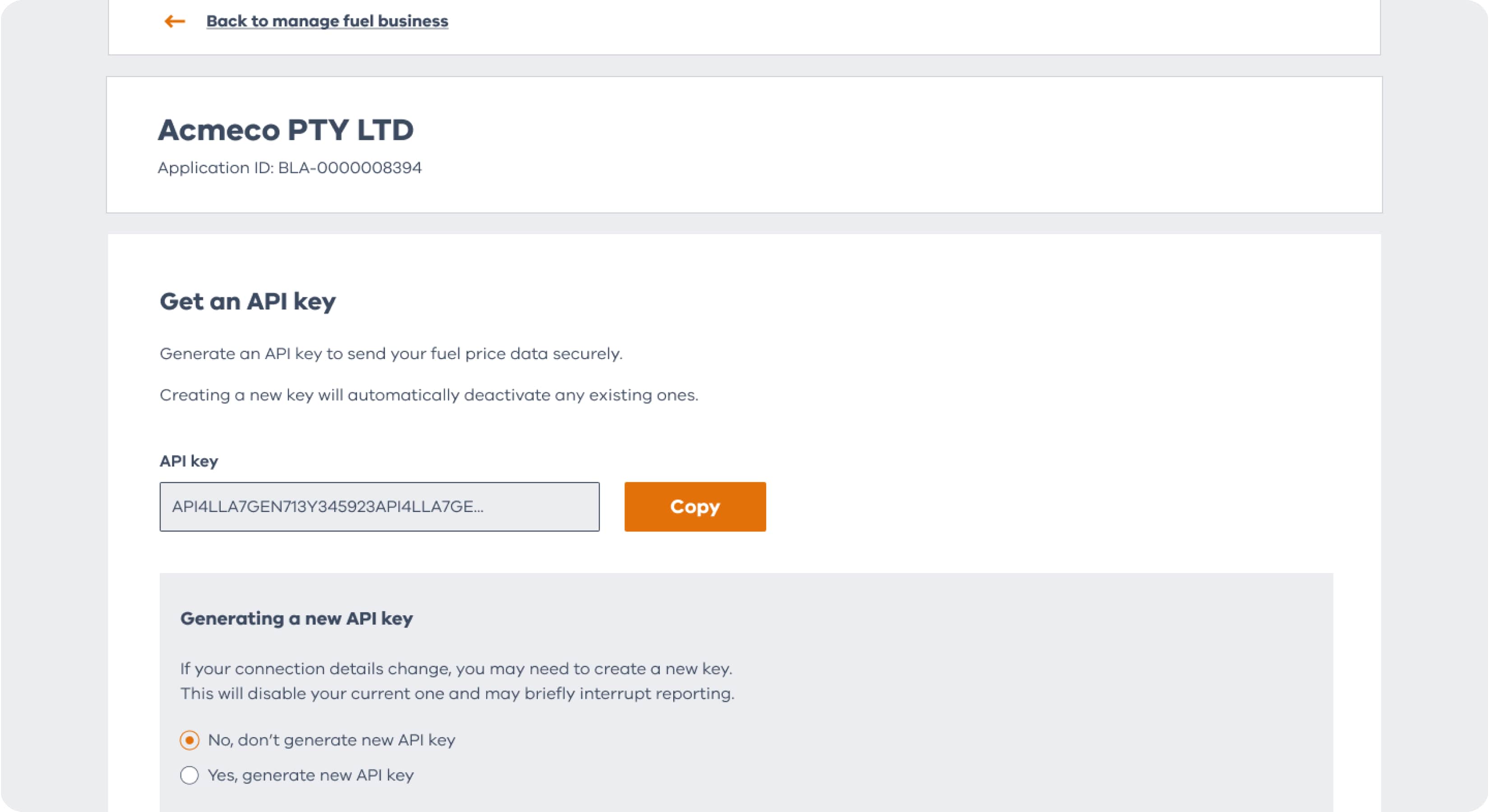
To continue setting up automatic reporting, you need to generate an API key. You can find this option by going to ‘Generate your API key’ on the ‘Manage your fuel business’ page.
An API key is a unique code that allow you to access our API. This will let us know who is sending us data. From here you’ll need to integrate the API key with your fuel price changing software. If you don’t know how to do this, contact your in-house IT professional or third-party software vendor.
Watch our API setup guide
Still need more help? Take a look at our handy how-to video guide.
Get help registering for the fuel scheme
Have questions about registering and reporting? Choose a category to learn more.


FAQ
Get answers to your questions about Fair Fuel Plan for retailers and more.